RoadLingua for Palm OS Manual
Note: This manual is included with RoadLingua and all dictionaries.
Version 1.7
Date: 07/01/2003
Table of Contents
- Description
- Package Contents
- Installing
- Terms used in this document
- Using the Program
- Adding a Dictionary
- Browsing a Dictionary
- Working with Clipboard
- Translation Lookup
- Global Find
- Panel Layout
- Beaming Dictionaries
- Viewing Dictionary Information
- Deleting Dictionaries
- Options and Special Features
- Resident calls
- Global Find support
- Translation font
- Paste on startup
- Expansion Cards (SD/MMC/CF/MemoryStick) Support
- Download Dictionaries
- Ordering and Registration
- How to buy/register
- Technical support. Contact Information.
- Disclaimer
Description
First of all thank you for trying RoadLingua - a powerful but easy-to-use dictionary shell for Palm OS compatible devices. The main features of RoadLingua are:
- Native support for expansion cards (CF, MMC, SD, Memory Stick),
- Extremely fast word browsing,
- Data compression makes the dictionaries smaller in size,
- Resident mode to query a word within any text application.
Along with RoadLingua we offer a wide range of freeware and commercial multilingual, specialty, and explanatory dictionaries. Both large dictionaries and small dictionaries for low memory devices are available.
Unregistered version of RoadLingua has no time limitation. You may use it as long as you want. Nevertheless, to get our support please consider registering RoadLingua.
Package Contents
This archive contains the following files:
 RoadLingua.prc - The RoadLingua program file
 Manual.htm     - This documentation in HTML format
Depending on distribution package type the archive may contain one or more dictionary files such as:
 EngFra.pdb     - English-French Dictionary
 ...
Installing
- Open Palm Desktop
- Click the Install button on the Desktop application's Launch Bar.
- In the Install Tool dialog box, click the User selector and select the correct user from the list.
- Click Add.
- In the Open dialog box, select RoadLingua.prc file to install.
- Click OK.
- When the Install Tool dialog box reappears, set the location in the Destination column to "Handheld".
- Hotsync your handheld
Terms used in this document
Hardware Buttons: The four physical buttons (date, address, todo, and memo) on the bottom of the Palm
Scroll Up/Down Buttons: The physical rocker switch at the bottom center of the palm
Graffiti: The special letter-like symbols you write on a Palm to enter text with your stylus
Graffiti Entry Area: The rectangular area at the bottom of the display screen where you can write letters in graffiti
Silkscreen Buttons: The four printed circular tap areas (Home, Menu, Calculator, and Find) to the left and right of the graffiti drawing area
Menus: The drop-down menus you get when tapping on the silkscreen menu button
Icon: The images on the Program screen area which being tapped invoke particular commands
Using the Program
Adding a Dictionary
Note: You can download dictionaries at http://absoluteword.com/download/
To install a dictionary follow the steps below (we assume the dictionary name is FraEng.pdb) :
- Open Palm Desktop
- Click the Install button on the Desktop application's Launch Bar
- In the Install Tool dialog box, click the User selector and select the correct user from the list
- Click Add
- In the Open dialog box, select FraEng.pdb files to install
- Click OK
- When the Install Tool dialog box reappears, check the location in the Destination column
- If you want to install FraEng.pdb to the expansion card select destination path to /Palm/
- Hotsync your handheld
Browsing a Dictionary
RoadLingua provides a set of controls to browse the dictionaries:
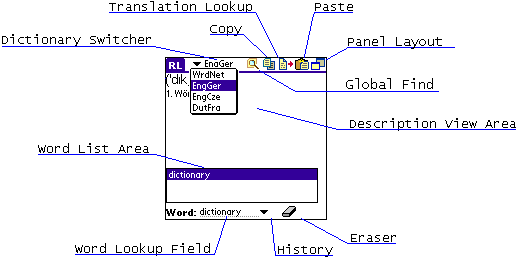
Dictionary Switcher: Use this combo box to choose an appropriate dictionary from the list of installed dictionaries; if no dictionaries are installed you see "?????" (question marks). The dictionary which title is displayed in the Dictionary Switcher is the active dictionary.
Note: Menu items such as Beam, Delete or Info apply to the active dictionary.
Word List Area: Contains a sorted list of words available in the dictionary. Tap on a word to get its description. You may scroll the list up and down using the scroll bar at the right side of the list.
Description View Area: Once you have chosen a word in the word list this area displays the word's description/translation.
Word Lookup Field: Type the word (or its first characters) to lookup a specific word or words starting with the typed characters. To erase the field quickly, tap the Eraser icon. To choose from the recent lookups, tap the History icon.
Working with Clipboard
RoadLingua supports Palm OS clipboard functions to make the integration with the other Palm OS applications easier.
If you have any text in you clipboard, and "Paste on Startup" option is enabled in RoadLingua preferences, the text from the clipboard will be copied to the lookup field upon RoadLingua start. If you start RoadLingua using Resident Mode, the clipboard text won't be copied unless you select some text in another application.
Copy: Copy the selection from either the word lookup field or description view area to the clipboard
Paste: Paste the clipboard contents to the word lookup field.
Note: Both commands are available from the Edit menu.
Translation Lookup
Lookup the selection from the description view area of the active dictionary. Selected text will be inserted into the lookup field. Use this feature to search for a word description from other word's description.
Global Find
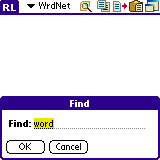
If the Global Find support is enabled, you can use this button to look for a specific text in the translation articles of the active dictionary.
Panel Layout
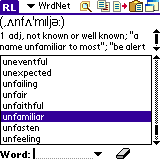
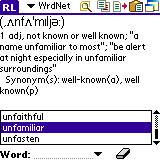
There are four modes of word list and description view areas arrangement. The first one (default) displays short word list area and tall description view area. For particular dictionaries you may find it useful to use other modes. Tap on the panel layout button to switch between modes. Next time you'll launch RoadLingua it will start with the last used mode.
| Mode 1 |
Mode 2 |
 |
 |
Beaming Dictionaries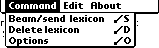
To beam a dictionary, simply choose the "Command -> Beam/Send Dictionary" menu item.
Note: Destination handheld should have RoadLingua installed to browse the received dictionary. You can beam RoadLingua program file to another handheld by using the Beam menu item in the standard Palm OS launcher screen.
Viewing Dictionary Information
Each dictionary compatible with RoadLingua contains information about itself such as copyright notice. To access this information, select the "About -> Dictionary" menu item. To view the abbreviations reference of active dictionary, select the "About -> Abbreviations" menu item.
Deleting Dictionaries
To delete a dictionary, select the dictionary title in the dictionary switcher and choose the "Command -> Delete Dictionary" menu item. Answer "Yes" to confirm the deletion.
Options and Special Features
Resident calls
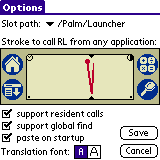
RoadLingua provides handy integration with other Palm OS applications by enabling resident calls. To activate this feature, mark "support resident calls" option in the "Command -> Options" menu item. Then while working with any text editor or reader which allows text markup, select a word or phrase, and draw the following stroke: 
to jump to the word description within the active dictionary. You can switch between dictionaries while in resident mode. To close RoadLingua and return to the previous application, tap "Hide" button at the bottom-right side of the screen: 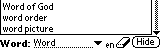
Users of Palm OS 4 or Palm OS 5 powered handhelds should use Resident Call by drawing the following keystroke:

Global Find support
RoadLingua supports the silkscreen find button as an option. To activate it, check the appropriate checkbox in the Preferences screen.
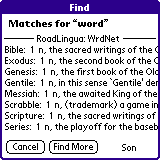
Now, you can use Find button to search for a specific text not only in built-in applications but in translation articles of active dictionary. RoadLingua will search the current dictionary only if you have launched RoadLingua as an application rather than in a resident mode.
Note: this process can be time consuming, so you may not wish to have this option activated at all times. You can interrupt or cancel it at any time. Found items are cached, so next time you search for the same string, it will be found immediately.
Translation font
RoadLingua can display translation text using two font sizes: standard and large. The latter one is useful for non-latin languages such as Chinese, Japanese, Vietnamese, and so on, to display local characters.
Paste on startup
If this feature is enabled, RoadLingua will paste the content of your copy/paste buffer directly into the lookup field every time you start it.
Expansion Cards (SD/MMC/CF/MemoryStick) Support
To provide an ability to install the large dictionary databases, RoadLingua supports all major expansion cards. To enable this feature you should simply put the dictionary PDB file to the /Palm/Launcher folder on the expansion card. RoadLingua will automatically detect the dictionary. There's no limitation to the number of dictionaries located on the card.
You can also choose another folder on the expansion card to store the dictionaries (see "Slot Path" option of "Commands -> Options" menu item). To manage the dictionary files on cards you should use third-party programs such as TealMover by TealPoint.
Download Dictionaries
To access our online dictionary database, point your web browser to http://absoluteword.com/download/ page. This page contains dictionaries fully compatible with RoadLingua. Both freeware and commercial dictionaries are listed.
Ordering and Registration
RoadLingua application is distributed as shareware. Dictionaries compatible with RoadLingua may be distributed with the license provided by dictionary contributor, usually as freeware or on commercial basis.
How to register
RoadLingua has no time or feature limitation except the nag screen occasionally appearing while you're using the software. To remove the nag screen, please register your copy of RoadLingua. RoadLingua can be registered for just $14.95 (Note: this price could be changed, for the current rate refer to http://absoluteword.com/order/ web page).
Commercial dictionaries for RoadLingua have a trial period (usually of 14 days). When the trial period is over, you need to purchase the dictionary license.
If you purchase any commercial dictionary, you get RoadLingua registration for free.
Volume discounts are available (contact for more info).
Benefits for registered users:
- 24x7x365 support via e-mail.
- Discounts on subsequent orders (contact for more info).
- Registered users get registration for both Palm OS and Pocket PC (WinCE) platforms.
To register RoadLingua and/or any commercial dictionary, follow these steps:
- Install RoadLingua to your handheld
- Open http://absoluteword.com/order/ web page
- Select an appropriate product and press "Buy Now" link
- Run RoadLingua application on your handheld
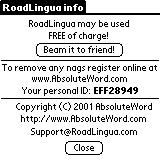
- Choose the "About -> RoadLingua" menu item
- Copy "Personal ID" field from the dialog appeared to the "Personal ID" field on the order page
Technical support. Contact Information.
Please send your questions and feedback to
Visit our website at http://absoluteword.com to get RoadLingua updates and additional dictionaries.
There is information how you can get FREE registration.
As a courtesy, we offer support to all users. Nevertheless, we consider your registration as a first step for support request.
Disclaimer
We at AbsoluteWord are committed to providing quality, easy-to-use software. However, this product is provided without warranty and the user accepts full responsibility for any damages, consequential or otherwise, resulting from its use.
This archive is freely redistributable, provided it is made available only in its complete, unmodified form with no additional files and for noncommercial purposes only. Any other use requires prior written authorization from AbsoluteWord.
Unauthorized commercial use includes, but is not limited to:
- Distributing the product for sale.
- Accompanying with a product for sale.
- Accompanying a magazine, book or other publication for sale.
- Distribution with "Media", "Copying" or other incidental costs.
- Distribution with access or download fees.
RoadLingua by AbsoluteWord © 2001-2006 All Rights Reserved
|